Your interactive instructions and PDF manuals don't always need the same visual treatment. Full colour images can help bring a 3D assembly sequence to life, while a PDF may call for a cleaner technical illustration style. You might also want a distinctive cover image to introduce the finished document.
Our latest release gives you more ways to create those visuals and use them across your project. It introduces Cadasio Studio, improved SVG output and a smoother workflow for technical illustrations in Layouts. The new Gallery brings your project media together, while updates throughout the Designer make everyday tasks easier.
Watch the accompanying video to see the changes in action, or read on for a closer look.
Create new visuals with Cadasio Studio
Cadasio Studio uses AI to enhance your existing step images, giving you more creative options for your technical manuals. Available to all subscribers, it provides a new way to explore different visual styles using images from your project.
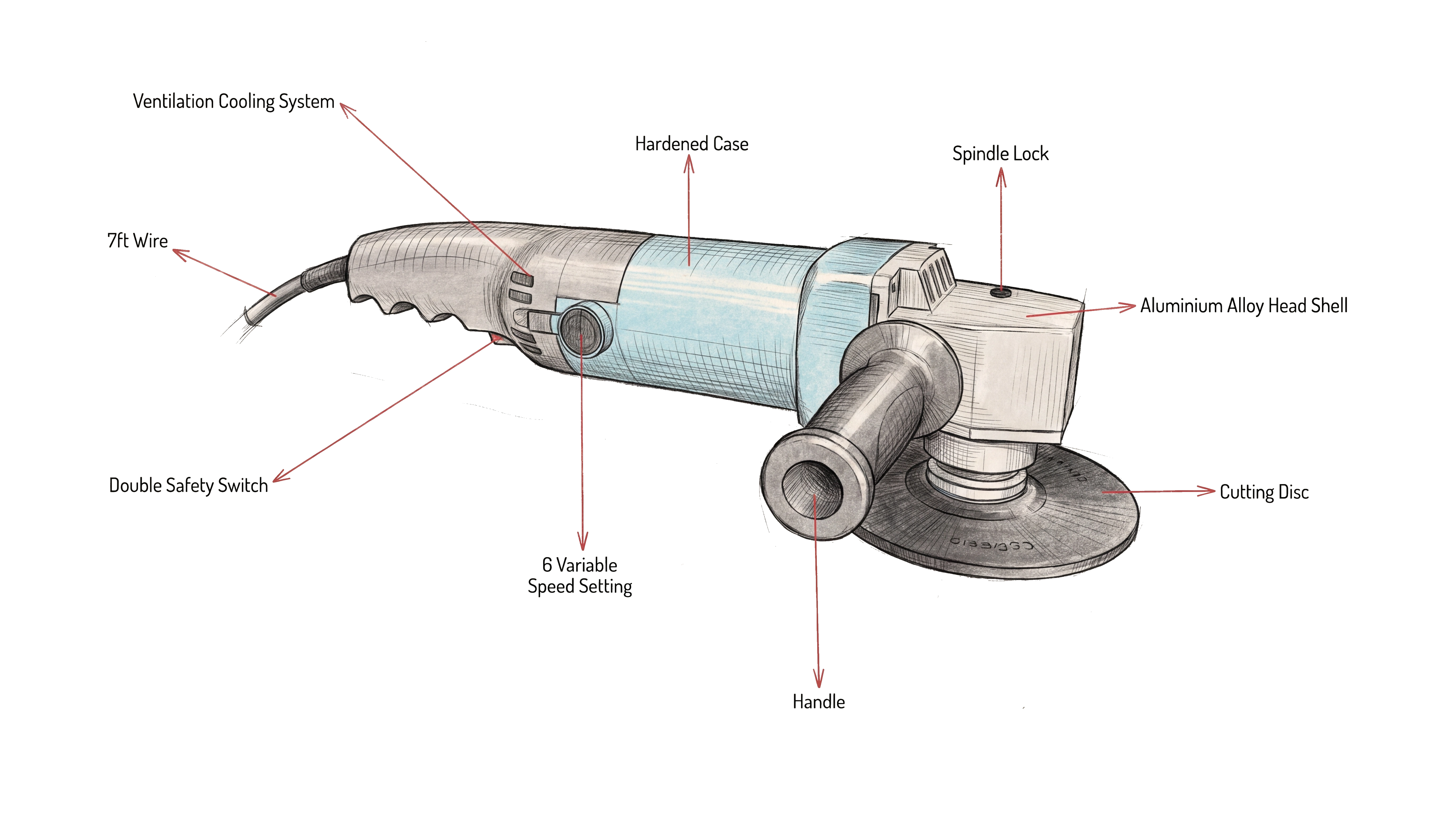
Getting started is straightforward. Choose a project, select the steps you want to enhance and pick a style. Several styles are included, and you can also create and save your own custom styles for future use.
This gives you room to experiment with the presentation of your images. You might want a different treatment for a few key steps, or an image with more visual impact for the cover of a manual.
Once your images are ready, you can compare the results and choose which ones to keep. If you want to refine an image, run another generation and review the new version. You can then download the images directly or add them to your workspace in Gallery.
Image generation uses credits, and Cadasio Premium customers receive a free monthly allowance.
Keep your project media together with Gallery
As a project develops, you can build up a useful collection of images and videos. Gallery brings that media together, making it easier to find and access the assets you've created.
You'll find Gallery in the Library area of your dashboard. From there, you can view and download step images, images generated in Studio and videos produced in the Designer.
Studio images are also available directly in Layouts. For example, you could create a cover image in Studio, choose the version you like and use it on the opening page of your manual. It gives you a way to carry the work you've done on your visuals through to the finished document.
More control over your SVG illustrations
We've improved vector output with a new High Quality option. In the vector settings, you can now choose between Basic, which provides the same output as before, and High Quality.
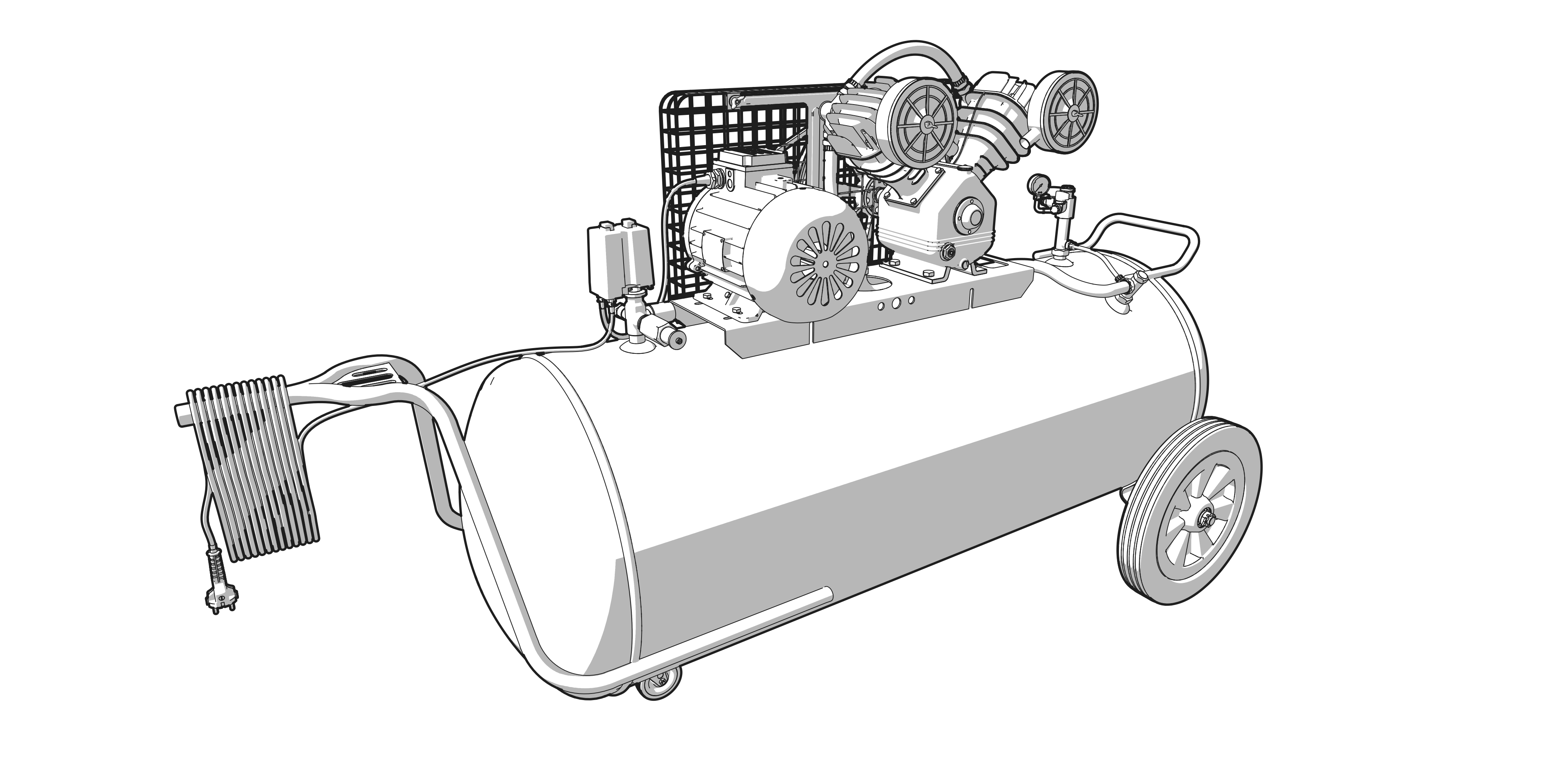
High Quality improves the overall appearance of your illustrations, including shading and fill colours. There's also a new outline option for a classic technical illustration look, giving you another way to present the parts and assemblies in your documentation.
The changes go beyond appearance. High Quality SVGs use individual paths for each object, with separate layers for markup and shading. This structure makes the file easier to work with if you need to edit it later.
Fonts are embedded by default, and text is preserved as actual text elements. If your workflow includes further editing after export, these changes give you a more useful starting point.
Create colour instructions and technical illustrations in one project
Many Cadasio users want their 3D instructions in full colour but prefer technical illustrations in their PDF manuals. Previously, creating those different image sets meant extra work.
Premium users can now capture a technical illustration alongside the standard image when saving a step. With both sets available, you can keep colour images in your 3D presentation and choose the technical illustration versions in Layouts.
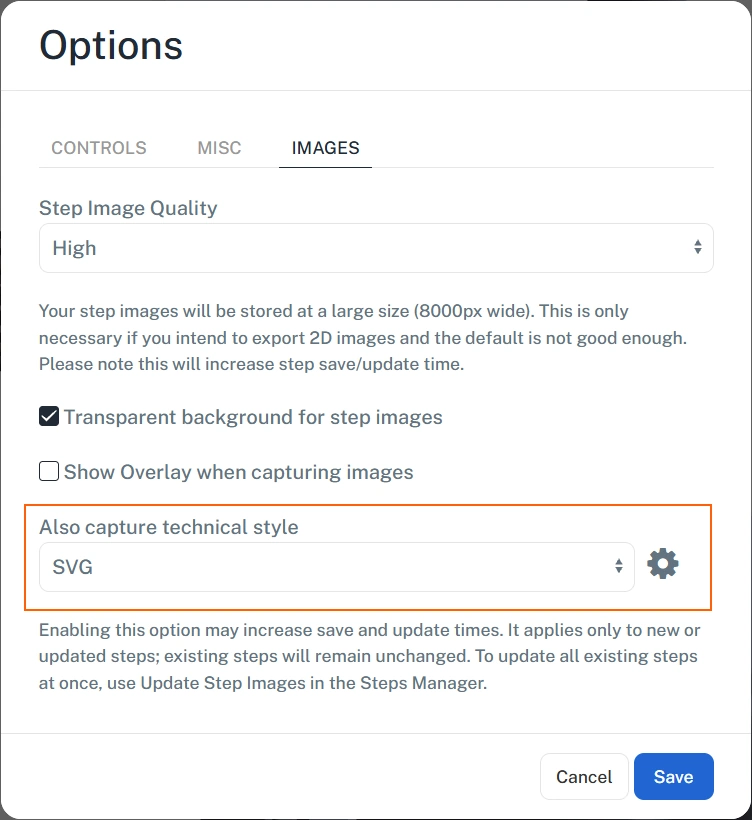
The setting applies to new or updated steps. Switching it on won't automatically generate technical illustrations for existing steps. To create those additional images, open the Steps Manager and use the Update Step Image tool.
Capturing a second image can make saving a step take a little longer, so you can choose when it best fits your workflow. One option is to finish working on your steps first, switch on technical illustration capture and then update the steps in one go. You can switch the option off again afterwards if you prefer.
We've also improved PDF output from Layouts. Vector images are preserved as vectors, and text is searchable. This helps you retain the benefits of your illustrations in the finished PDF and makes it easier for readers to find a particular word or phrase in the document.
Easier selection and more flexible annotations
Several smaller updates make common tasks in the Designer more convenient.
In the Steps Manager, start by selecting a step using the checkbox in the corner of its card. You can then click anywhere on another step's card to add it to your selection, or hold Shift to select a range. This makes it easier to build a selection when you're working across several steps.
Hovering over a toolbox item now reveals icons for auto adding. These options were previously available only by right-clicking, so you can now access them directly as you browse your toolbox.
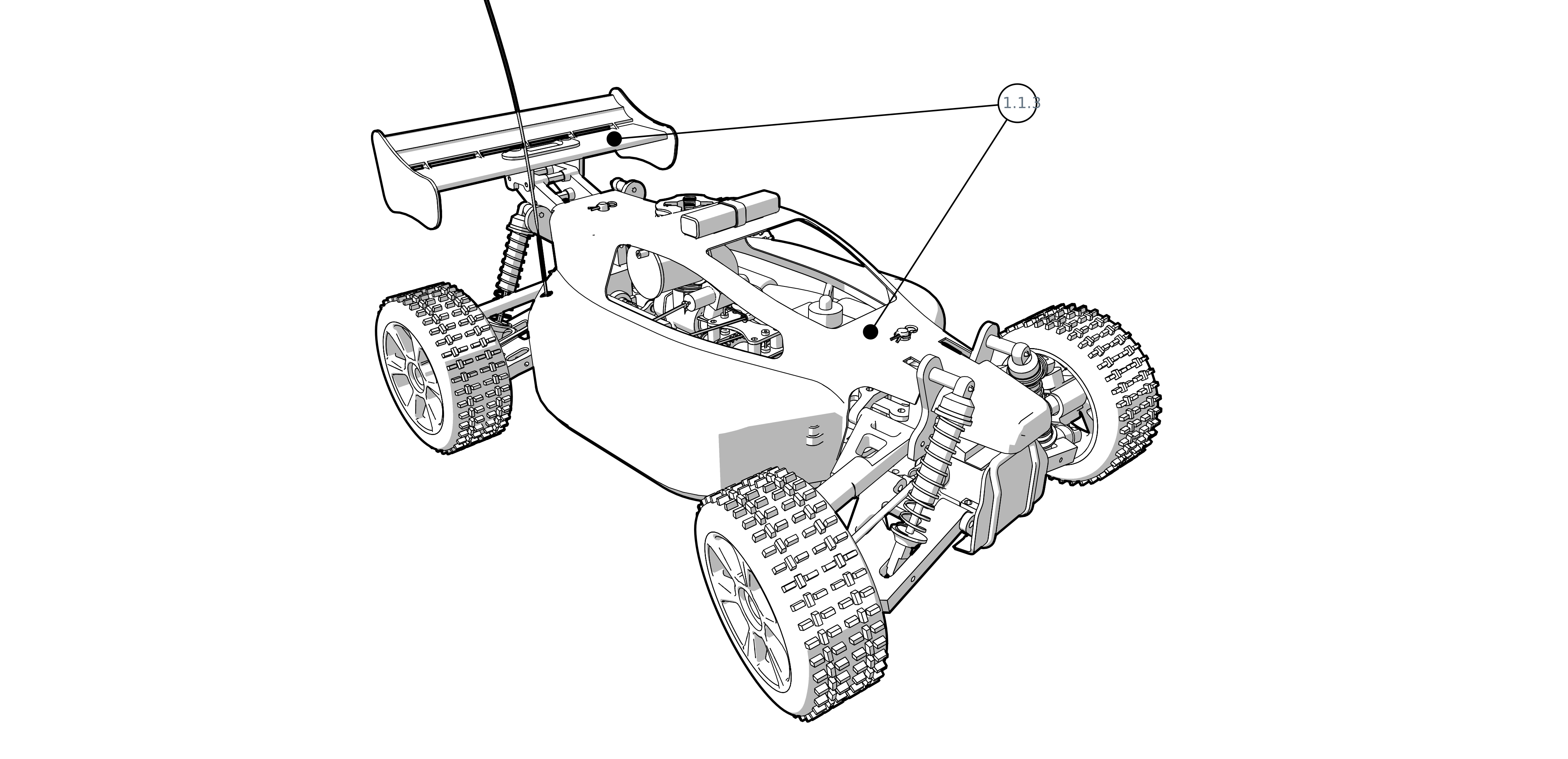
Toolbox 2D items also support multiple leaders. Select an item, open the Leader tab and click the plus button to add another leader, then attach it wherever you need. This is useful when a single item needs to point to more than one location.
Better animation and easier access to your videos
We've streamlined the animation process and improved the quality of the results.
In supported browsers, you can now download an MP4 without waiting for the video to be processed. You can also add the video to your workspace so colleagues can access it, with Gallery providing a place to view and download it alongside your other project media.
Studio is in its first release, and we're keen to hear how you're using it and what you'd like to see next. Please keep sharing your feedback, ideas and enhancement requests. They help shape future Cadasio updates.