
They allow part data to stay connected to your 3D model, reducing manual entry, improving accuracy, and ensuring consistency across tables, annotations, and documentation.
This guide explains how Meta Properties work in Cadasio, how to import and manage them, and how to use them effectively in your projects.
What are Meta Properties?
Meta Properties are additional data attributes stored on CAD objects. These might include part numbers, materials, finishes, descriptions, or any other information defined in your CAD system.
When imported into Cadasio, these properties are mapped directly to the corresponding parts and assemblies. This means the data you rely on in CAD can be reused throughout your Cadasio project without duplication or retyping.
Uploading Meta Properties from CAD
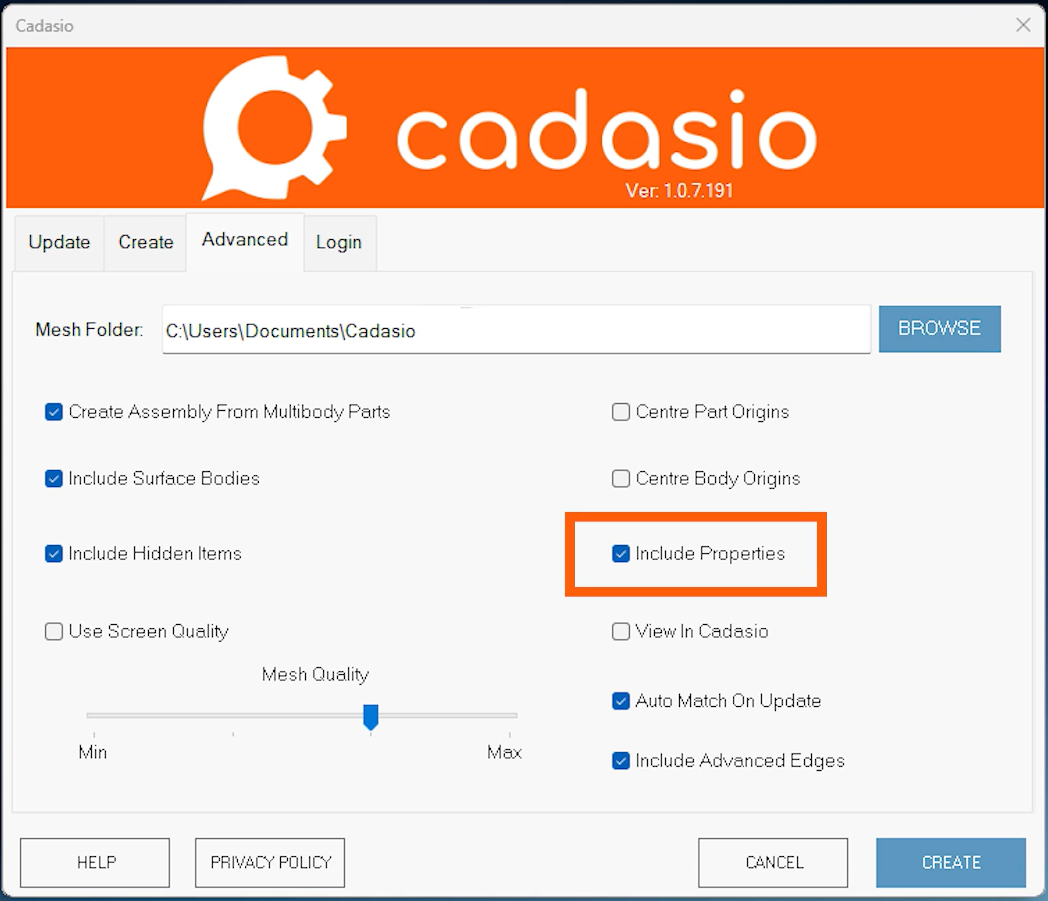
Every Cadasio CAD add-in includes an option to upload Meta Properties when creating or updating a project.
When this option is enabled, any properties applied to your CAD files are automatically transferred and linked to the matching objects in your Cadasio project. This ensures that your project starts with accurate, up-to-date data from the source CAD model.
Viewing and editing Meta Properties
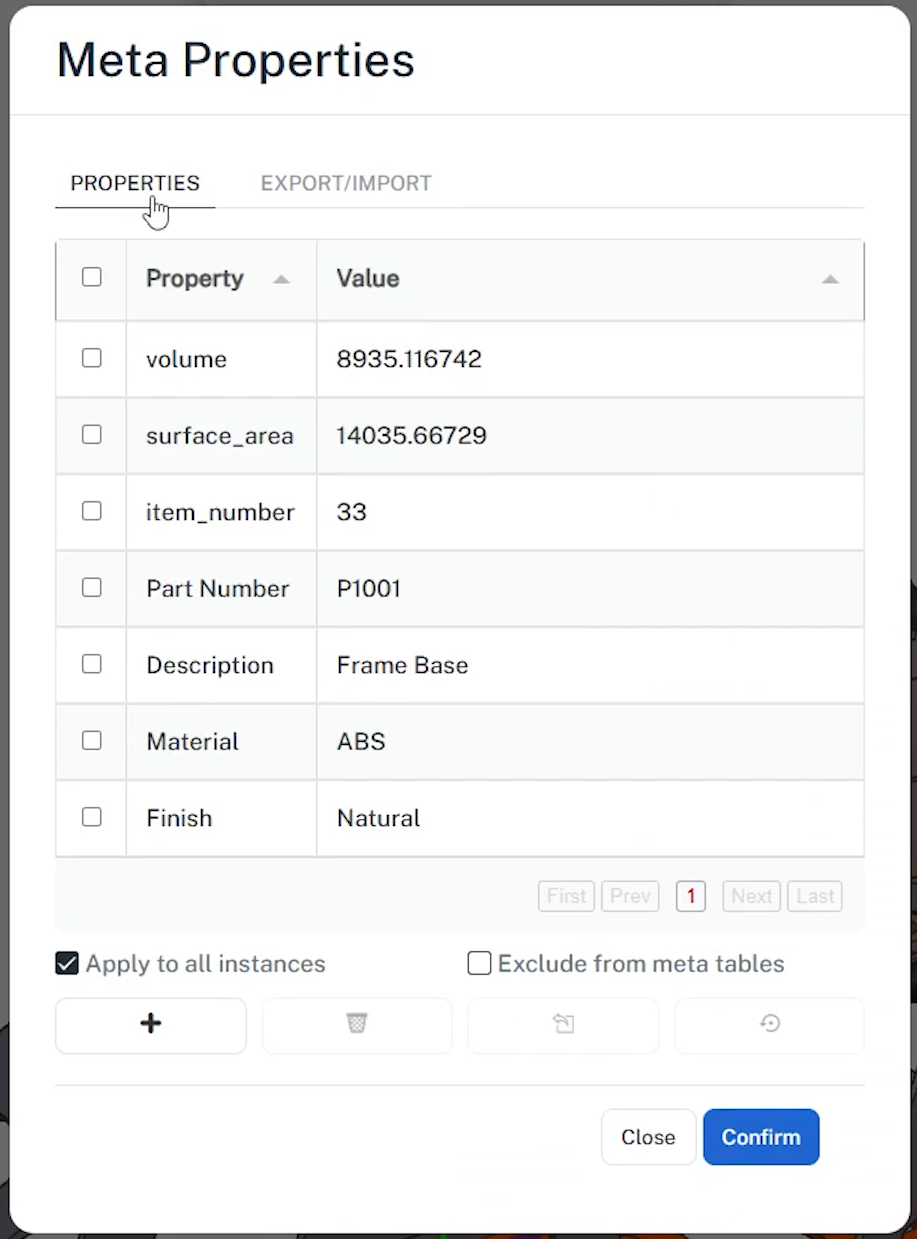
Meta Properties can be viewed and managed directly within the Cadasio Designer.
To access them, select any object in the scene and open the General tab. From there, choose Meta Properties. You will see a list of attributes that were pulled directly from your CAD system.
Existing properties can be edited at any time, and you can also add new custom properties directly within Cadasio. This is useful when additional information is needed that was not included in the original CAD file.
Exporting and importing Meta Properties
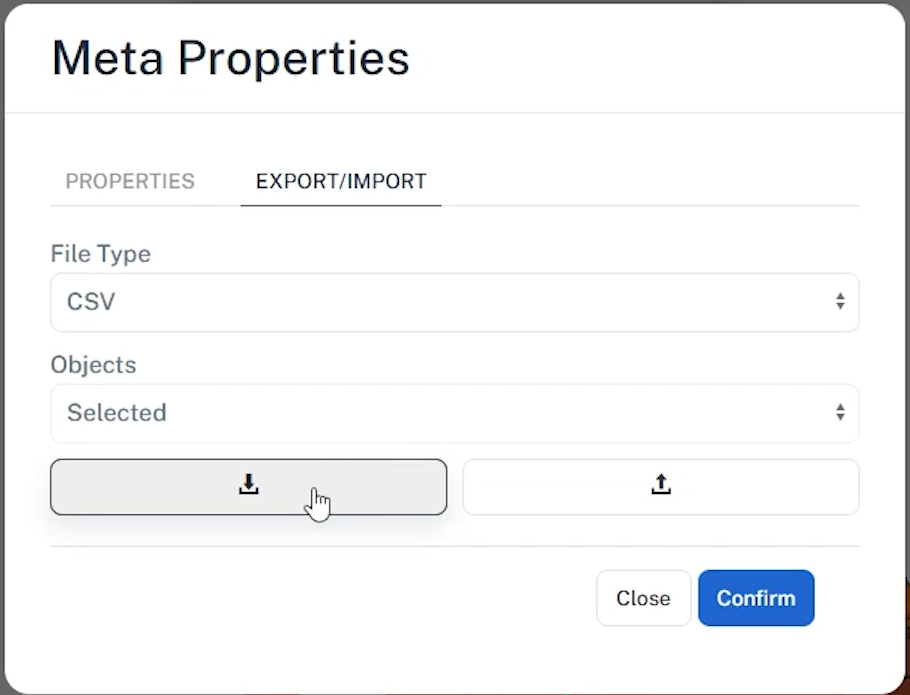
Cadasio allows you to export Meta Properties as either a CSV or JSON file using the Export/Import tab. You can choose to export properties for selected objects only, or for the entire assembly.
This workflow is ideal when you need to update many properties at once or add new properties in bulk.
When you open an exported file, you may notice some column titles enclosed in square brackets. These are system properties used by Cadasio to correctly map data back to the right parts. These fields should not be modified.
You can safely add new columns for additional properties, such as a Finish property, or edit existing values. For example, you might standardise a material value by changing “6063” to simply “Aluminum”.
Once your edits are complete, upload the file back into Cadasio. Any modified properties will be updated, and new properties will be assigned to their corresponding objects automatically.
Using Meta Properties in your projects
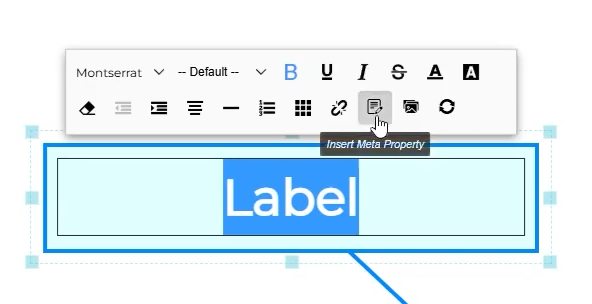
With your Meta Properties organised, you can reuse them throughout your project.
Meta Properties can be used to populate columns in tables, making it easy to create structured, data-driven layouts. They can also be inserted into text markup items.
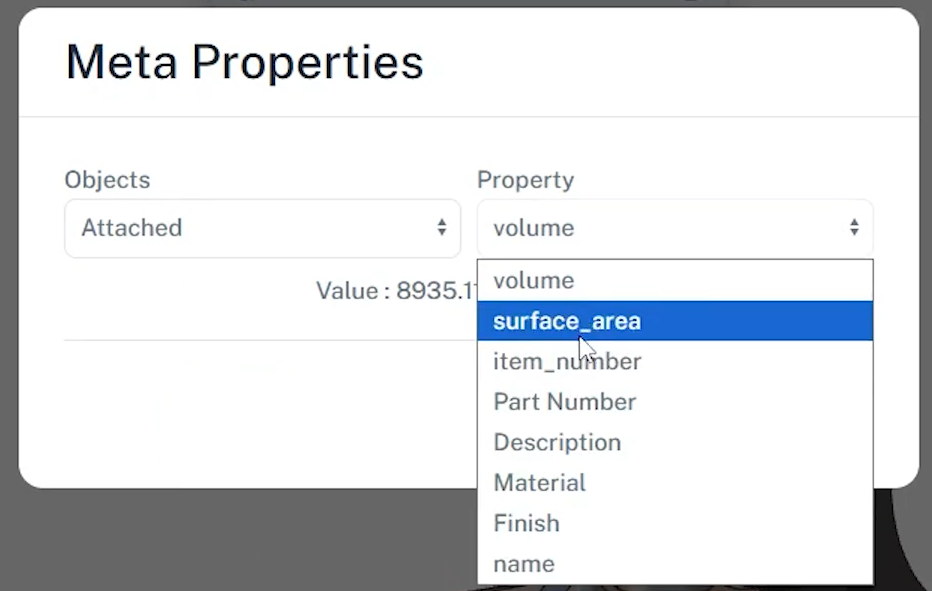
When inserting a Meta Property into text, you can choose the source of the data. The property can be pulled from the object the text is attached to, the nearest assembly, or any specific part you select. This flexibility makes it easy to display the right information in the right context.
Work smarter with Meta Properties
Meta Properties help you maintain a single source of truth for part data throughout your Cadasio projects. By importing properties from CAD, managing them centrally, and reusing them in tables and annotations, you can reduce errors and keep your projects accurate and consistent.