In Cadasio, roles and teams work together to give you a clear, structured way to manage permissions, responsibilities, and collaboration across your organisation.
Understanding user roles
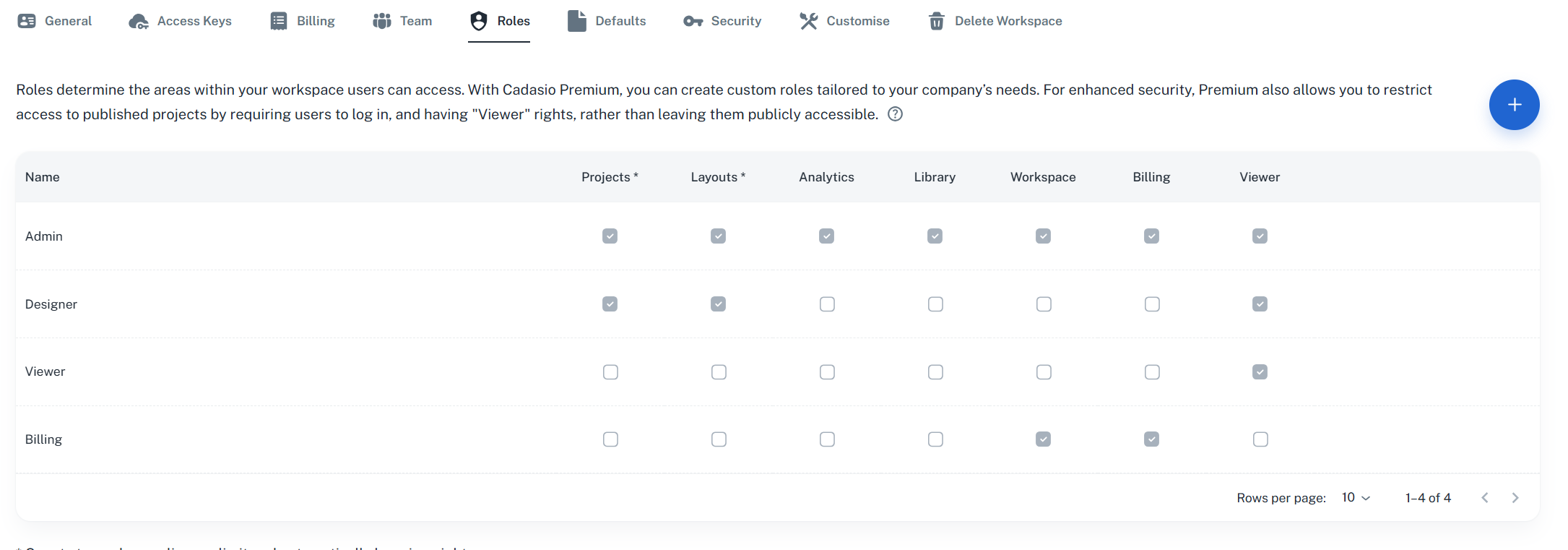
User roles define what each person is allowed to do in Cadasio. You can manage roles from the dashboard under the Workspace section. A role controls which features a user can access and which actions they are permitted to perform. This ensures users have the right level of access for their responsibilities, without exposing tools they do not need.
Cadasio includes several predefined roles by default:
- Admin - Admins have full access to the workspace and are responsible for managing users, roles, and settings. Every workspace must have at least one admin.
- Designer - Designers create and edit Cadasio projects and layouts. They can manage their own personal assets, while shared library items such as colours and fonts are locked and managed by admins. This helps maintain consistency across the workspace.
- Viewer - Available to Cadasio Premium subscribers, the Viewer role allows you to restrict access to published projects so they are only visible to logged-in users.
- Billing - Billing users can manage invoices, payment details, and subscription-related tasks without access to design or project features.
For Premium users, roles are fully customisable. You can create your own roles by adding a new role, naming it, and selecting exactly which areas of Cadasio that role can access. This is ideal for tailoring permissions to your team structure.
Managing teams and users
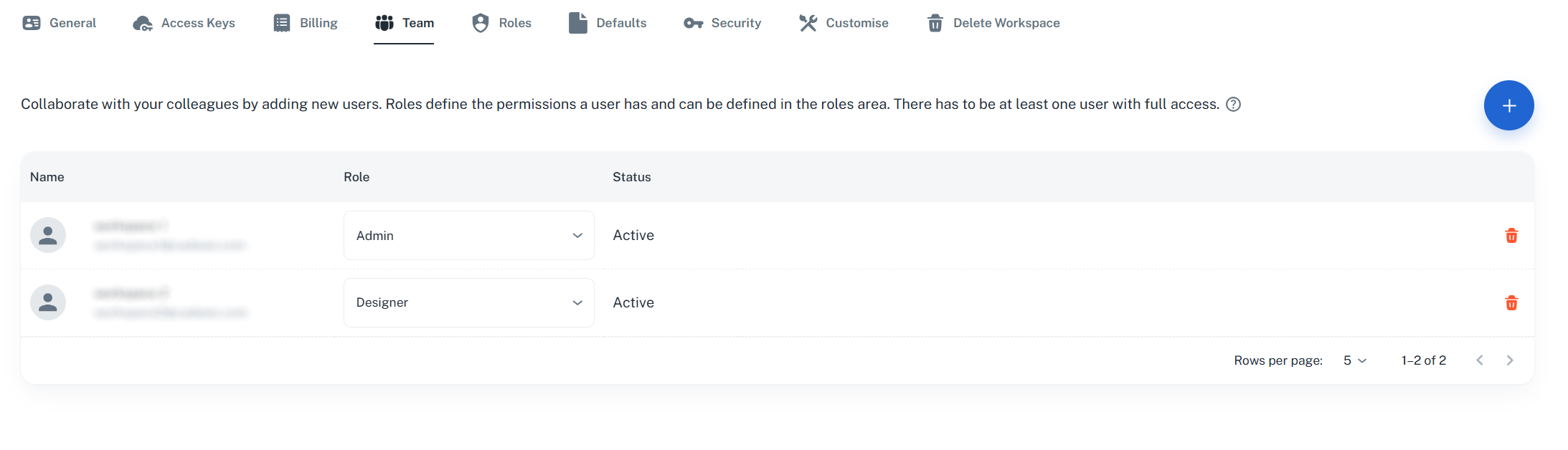
Teams are managed from the Teams tab in the dashboard. From here, you can add users to your workspace and assign them a role. Depending on the role, additional licences may be required.
Once added, users become part of your Cadasio workspace and can collaborate with other team members. Everyone in the workspace shares the same library, making it easy to maintain visual and brand consistency across all projects.
You can remove users from the workspace at any time. When a user is removed, their licence is freed up and they are moved to their own separate workspace. This immediately removes their access to your projects, layouts, shared library, and subscription.
Project ownership and responsibility
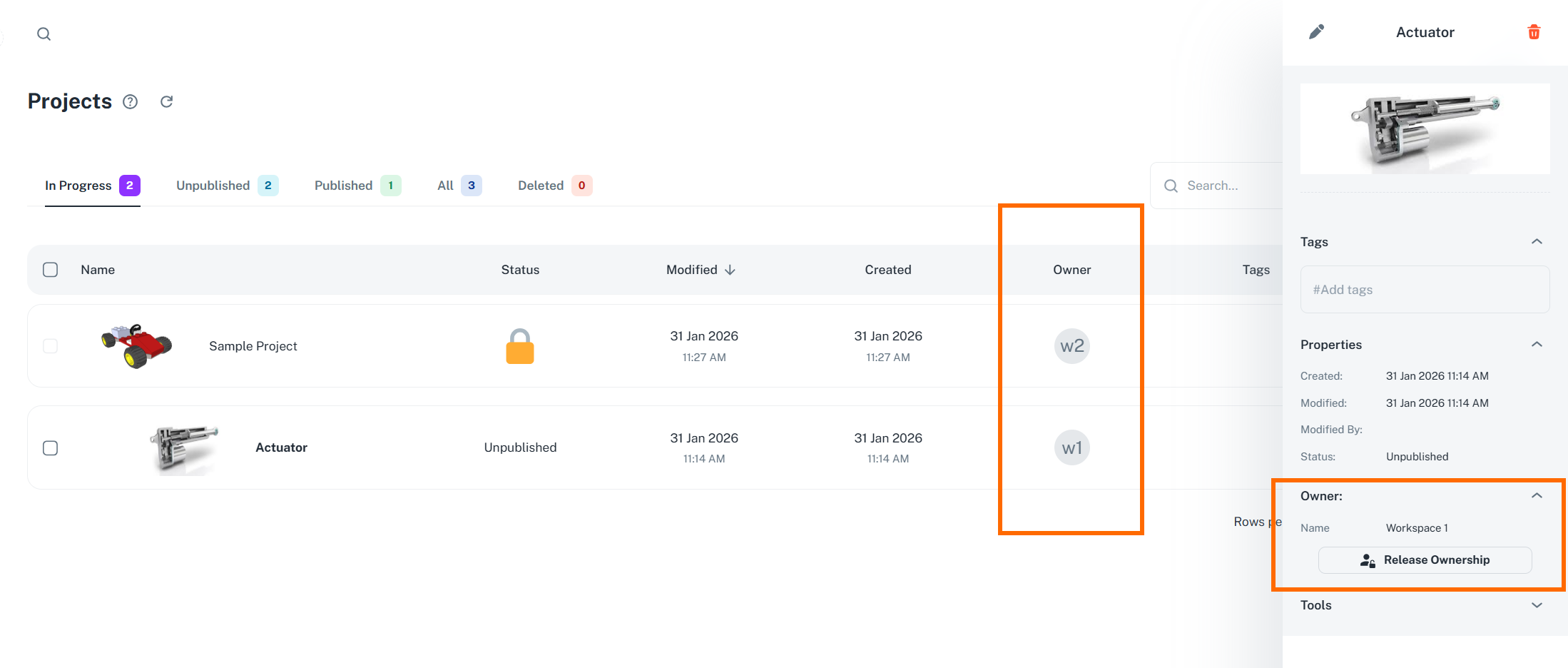
To keep collaboration clear and prevent unwanted changes, Cadasio allows users to take ownership of projects and layouts.
When viewing a project or layout, a user can open the details panel and claim ownership. Once a project has an owner, only that user can make changes to it. If another user needs to edit the project, the current owner must first release ownership. Workspace admins can release ownership at any time, regardless of who originally claimed it.
Ownership is optional, but it provides an extra layer of control. It helps clarify responsibility, prevents accidental edits, and allows users to filter their view so they only see the projects they are actively working on.
Clear access, smoother collaboration
With clearly defined roles, a shared team workspace, and optional project ownership, Cadasio makes it easy to manage access, protect your work, and collaborate efficiently. Whether you are scaling a team or simply keeping responsibilities clear, these tools give you full control over how your workspace operates.