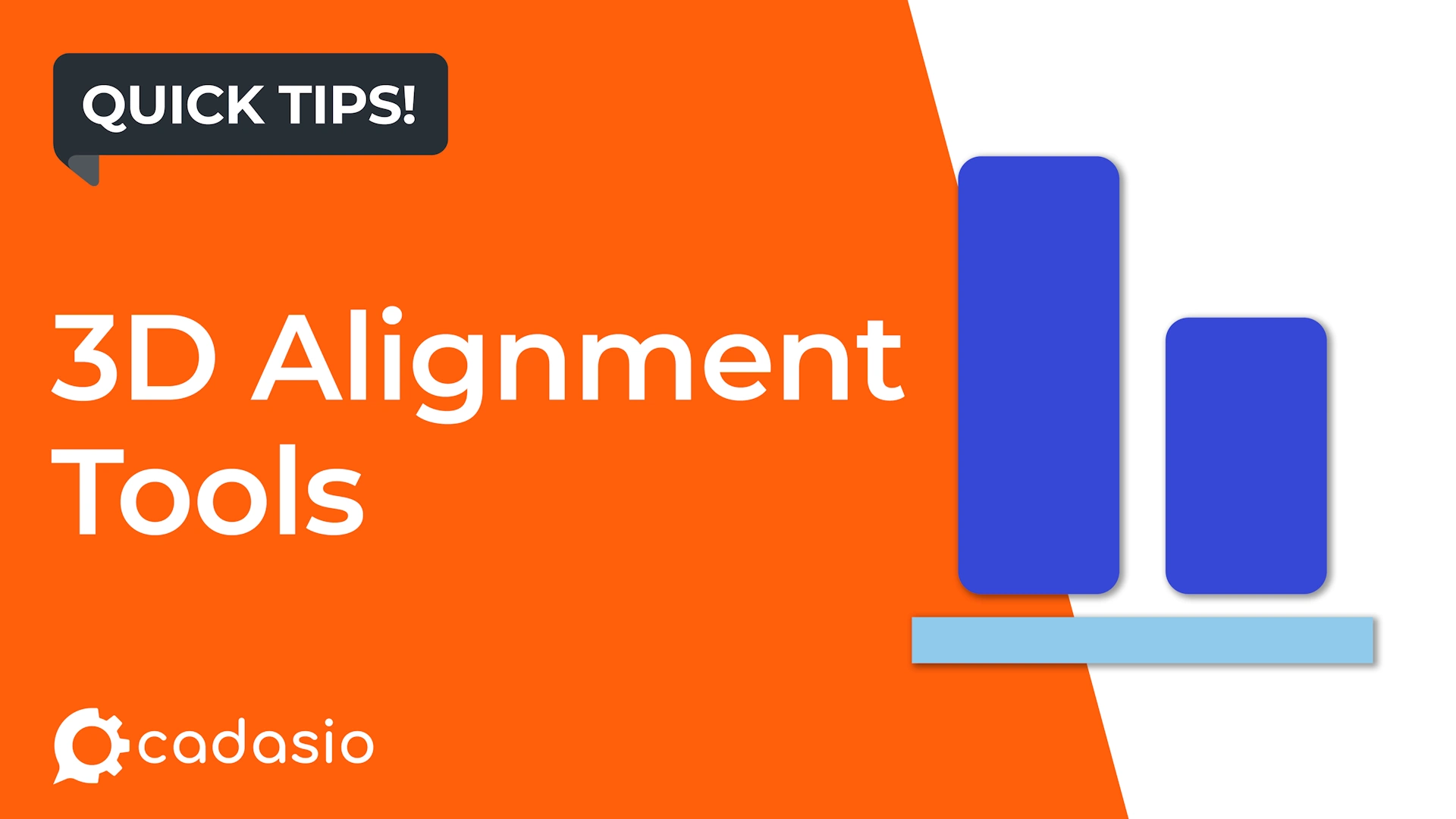
Cadasio includes several simple but powerful alignment tools that help you position components accurately and consistently. This guide explains how to use them and when each tool is most effective.
Why precise alignment matters
Clean alignment improves:
- Visual clarity
- Professional appearance
- Consistency across steps
- Readability of assembly layouts
Even minor offsets can be noticeable in structured layouts, especially when presenting parts in rows, grids, or exploded views.
Set Position
The Set Position option allows you to explicitly define an object’s location by entering X, Y, or Z values.
This moves a component to an exact coordinate in 3D space. While not needed for everyday adjustments, it is extremely useful when precise positioning is required or when matching known measurements.
Best for: Technical layouts that require exact placement.
Copy Translation
Copy Translation lets one component follow the exact movement of another.
After moving a part, you can apply the same positional change to another component. This is helpful when spacing or symmetry needs to be consistent.
Keep in mind:
- It works using the movement delta within the active step
- It is best used immediately after moving the original part
- Once the step is saved, the delta resets
Best for: Repeating the same movement across multiple parts.
Align Tool
The Align Tool is often the quickest and most practical alignment method.
To use it:
- Select the parts to align
- Ensure the first selected part is your reference
- Activate Align
- Choose the face or midplane of the bounding box to match
All selected items will align to the chosen reference surface or plane.
Best for: Quickly lining up multiple parts on a shared plane.
Orientate Axis Upwards
Parts import using the orientation defined in the CAD file, but that orientation is not always ideal for presentation.
Instead of manually rotating each part, use Orientate Axis Upwards.
When enabled:
- A bounding box appears around each selected object
- You simply click the face you want pointing upward
- Cadasio automatically rotates the part
After orientating, you can use the Align Tool to ensure all parts sit on the same plane.
Best for: Preparing layouts where consistent orientation is important.
Faster positioning, cleaner results
By combining Set Position, Copy Translation, Align, and Orientate Axis Upwards, you can position components quickly and accurately.
These tools help you avoid guesswork, reduce manual adjustments, and produce cleaner, more professional layouts in your Cadasio projects.